
Getting Started — Automate Song Changes and HIT with Stage Traxx
This guide walks you through setting up Stage Traxx to automatically change presets and turn harmonies on or off on your TC Helicon Play Acoustic — using the built-in Sample Setlist that comes with the editor.
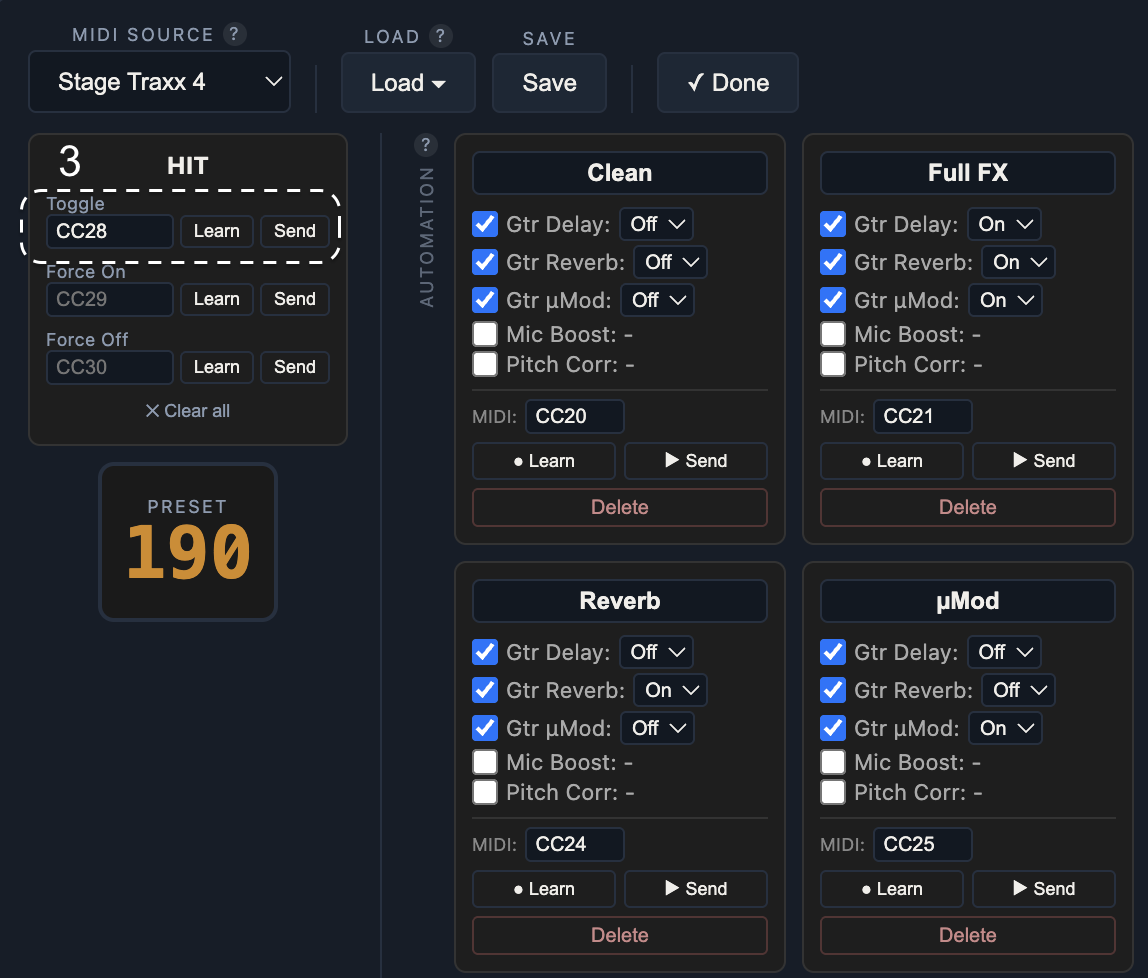
The editor uses a single MIDI convention everywhere: one CC number, value 127 for on, value 0 for off. The same pattern works for HIT and for FX preset activate/deactivate. (Previously the editor exposed separate Toggle / Force-On / Force-Off mappings — those have been consolidated into one mapping with the on/off split made by the value byte.)
What You Need
- TC Helicon Play Acoustic connected via USB
- Play Acoustic Editor running on your computer
- Stage Traxx on your computer
Step 1: Load the Sample Setlist
Open the Play Acoustic Editor and go to the Live tab. In the Setlist card, click Load and select Sample Setlist from the Samples section. You'll see five songs appear:
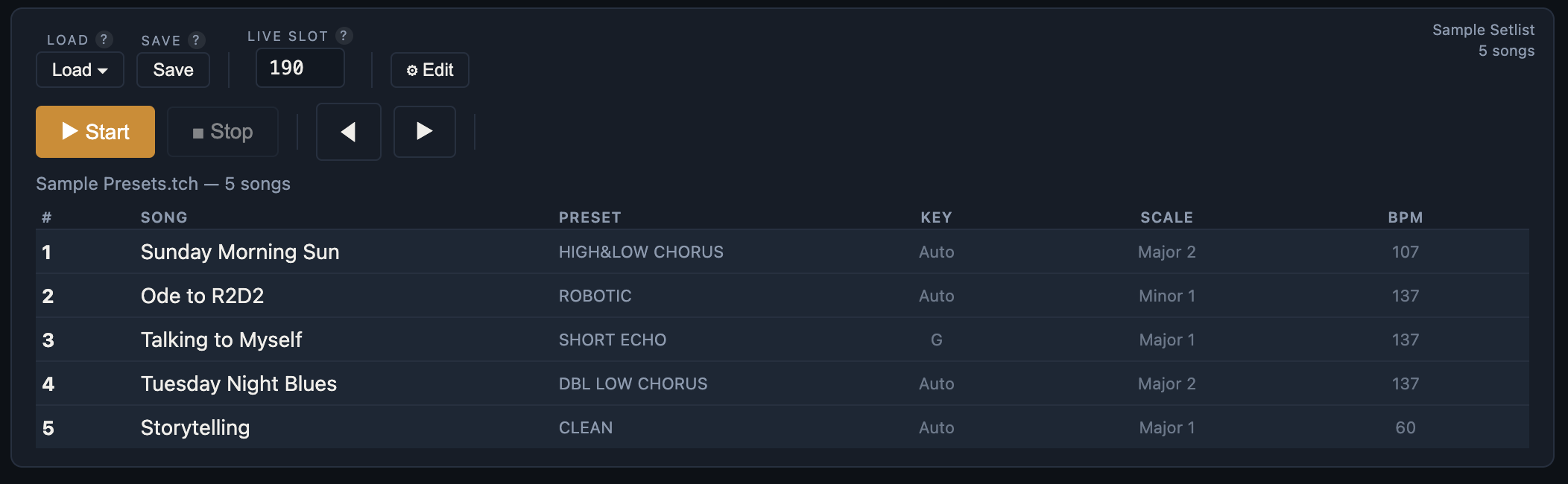
Each song is already mapped to a preset. When a song is triggered, the editor sends that preset to the device automatically. You can also override the Key, Scale and BPM so you can have one preset and then adapt it to each song during the session.
Step 2: Load the Sample Live Config
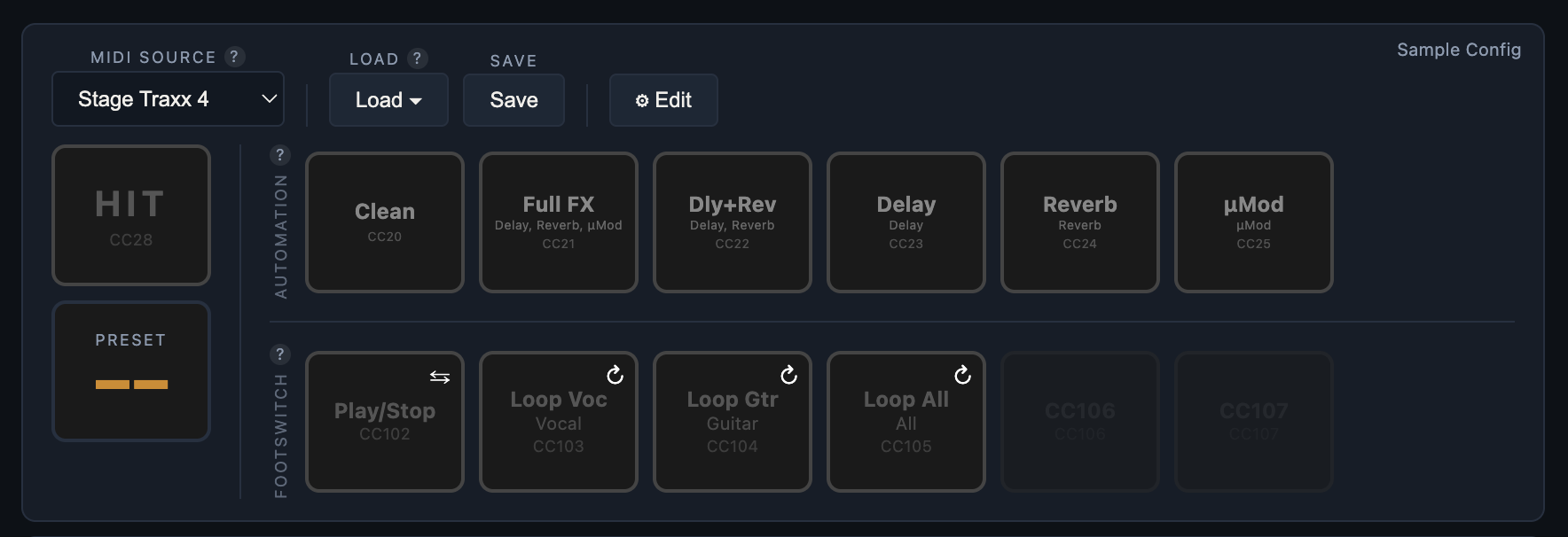
In the Live Controls card above the setlist, click Load and select Sample Config. This sets up the HIT button with CC34 — the MIDI command Stage Traxx uses to switch harmonies on (value 127) and off (value 0).
Step 3: Test It Manually
Before connecting Stage Traxx, make sure everything works by testing manually with the device connected:
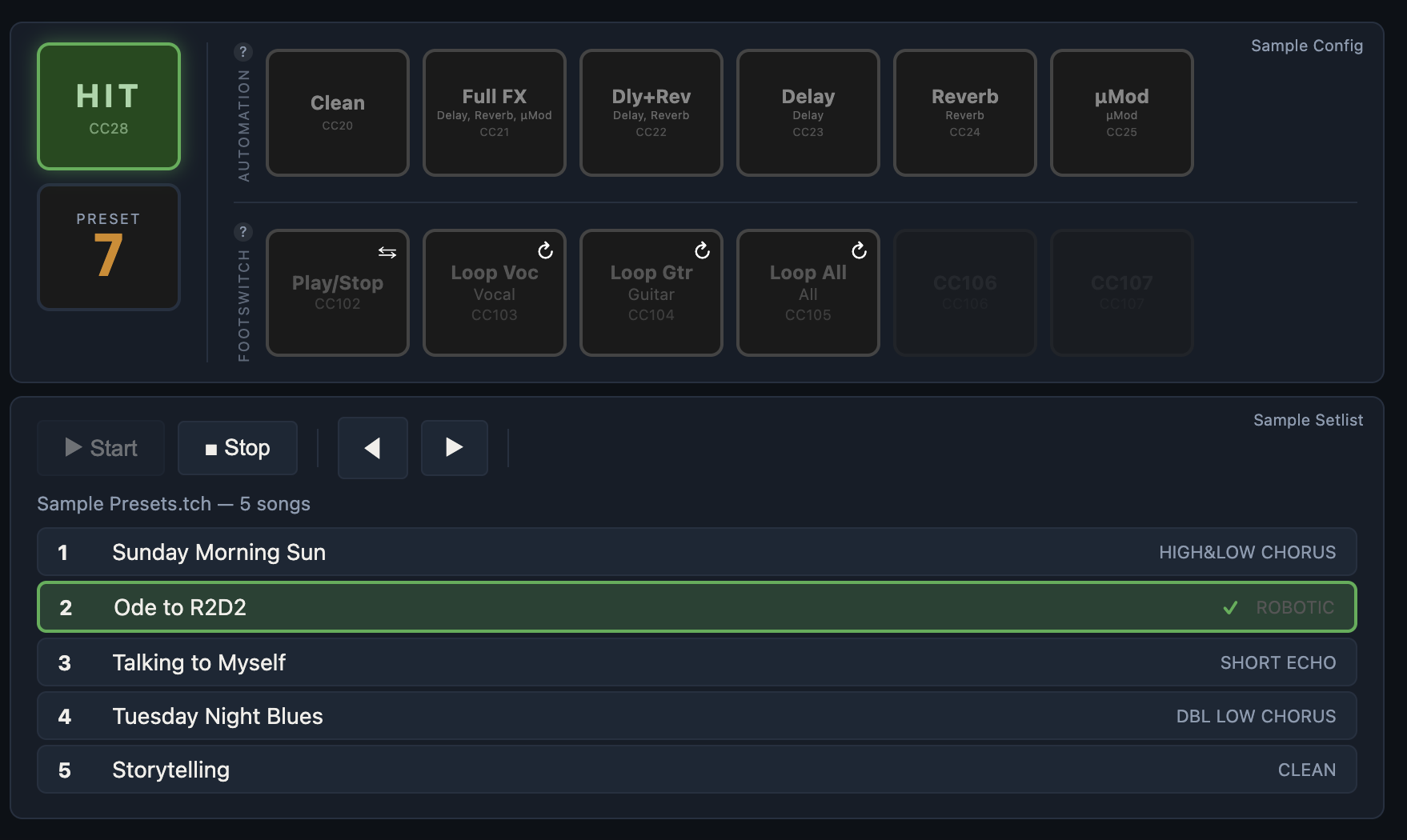
- Click a song in the setlist — watch the device change to that preset. Try clicking through all five songs and listen to each effect: harmonies, robotic voice, echo, low doubling, and clean.
- Click the HIT button — you should hear the harmonies kick in on presets that have harmony configured (like HIGH&LOW CHORUS). Click again to turn them off.
- Try different combinations — click "Sunday Morning Sun" to load the harmony preset, then click HIT to hear the High & Low voices join your vocal.
If the preset changes and HIT toggles correctly on the device, you're ready to automate it with Stage Traxx.
Step 4: Set Up "Sunday Morning Sun" in Stage Traxx
Open Stage Traxx on your phone or tablet. Create a new song called Sunday Morning Sun and paste in the lyrics. Here's what the structure looks like:
[Intro]

[Verse 1]
Woke up to the light through the curtain
Coffee's getting cold but I don't mind
Your voice still hums the tune from last night

[Chorus]
Sunday morning sun won't let me go
Sunday morning sun is all I know
Singing to the sky, just letting go

[Verse 2]
...
Link the Song to a Preset
We need Stage Traxx to tell the editor which preset to load when this song starts. Here's how:
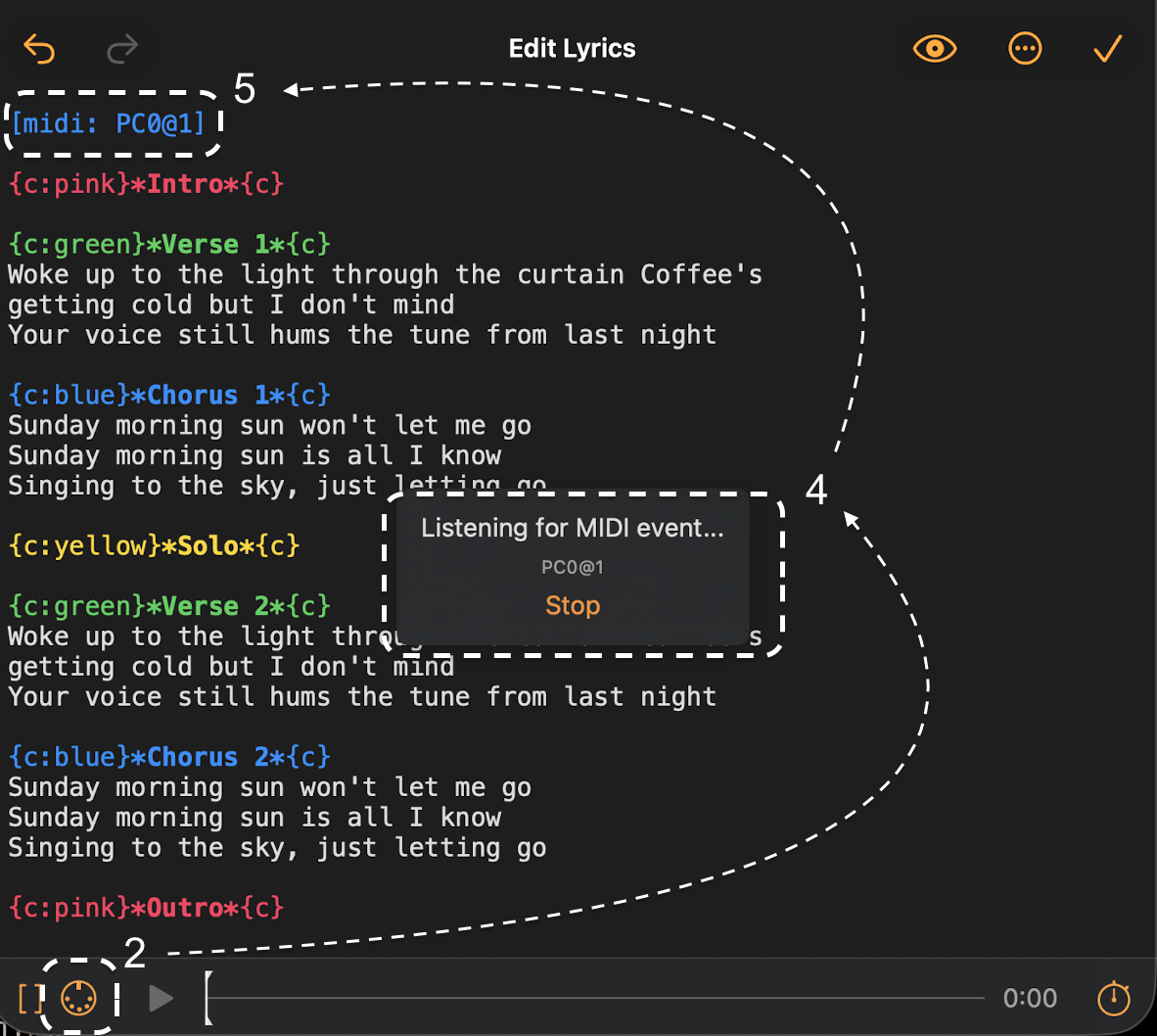
- In Stage Traxx, tap at the very top of the lyrics (before Intro)
- Tap the MIDI Learn button in Stage Traxx
- Switch to the editor — click the Send button next to song 1 (Sunday Morning Sun) in the setlist. This sends the PC (Program Change) that identifies this song.
- Back in Stage Traxx, you'll see a MIDI parameter appear. Tap Stop to finish learning.
- There should now be a MIDI command at the top of the lyrics page
The MIDI command is now inserted at the top of the lyrics. When Stage Traxx reaches this song, it sends the PC to the editor, which loads the HIGH&LOW CHORUS preset onto the device.

Add HIT for the Chorus
Now let's make the harmonies kick in automatically at the chorus. The editor uses a single CC for both directions — value 127 turns HIT on, value 0 turns it off.
- In Stage Traxx, tap just before the Chorus line
- Tap MIDI Learn
- In the editor, open the HIT edit popover and click Send On. This sends
CC34with value127. - In Stage Traxx, tap Stop. A MIDI command like
[midi: CC34.127@1]appears before the chorus. - Add a timestamp so it fires at the right moment — change it to e.g.
[midi@00:03.00: CC34.127@1]
Now do the same after the chorus to turn HIT off:
- Place the cursor after the last chorus line.
- Tap MIDI Learn.
- In the editor, click Send Off on the HIT popover. This sends the same CC34, but with value
0. - In Stage Traxx, tap Stop. The command
[midi: CC34.0@1]appears. Edit the timestamp, e.g.[midi@00:18.00: CC34.0@1].
The same CC number (CC34) is used twice — once with value 127 for "on" and once with value 0 for "off". Anyone reading the lyrics can tell at a glance what each tag does.
Repeat for every chorus. Your lyrics should now look like:
[midi: PC0@1]

[Intro]

[Verse 1]
Woke up to the light through the curtain
...

[midi@00:18.00: CC34.127@1]
[Chorus]
Sunday morning sun won't let me go
...

[midi@00:34.00: CC34.0@1]
[Verse 2]
...
Step 5: Repeat for Other Songs
Do the same for each song in the setlist:
- Create the song in Stage Traxx with the song name.
- At the top of the lyrics, learn the preset trigger (click Send on the song's row in the editor's setlist — this sends the song's PC).
- Before each section where you want HIT on, learn Send On from the HIT popover (sends
CC34.127). - After the section, learn Send Off from the HIT popover (sends
CC34.0) so the harmonies stop.
Each song in the Sample Setlist uses a different preset — so when Stage Traxx switches songs, you automatically get the right vocal effect for that song.
Step 6: Connect and Perform
- Select your MIDI source in the Live Controls — pick the port Stage Traxx sends on
- Click Live to enter performance mode (hides the menus for a clean view)
- Start your setlist in Stage Traxx
As you move through songs, Stage Traxx sends the MIDI commands. The editor receives them, loads the right preset, and switches HIT on or off at the right moments. Watch the screen — the HIT button lights up green when harmonies are active, and the current song highlights in the setlist.
Video of APE and ST4 in action:
Bonus: FX presets follow the same pattern
The FX preset boxes in the device panel work the same way as HIT — one CC, value 127 activates, value 0 reverts. Click Edit on the device panel and look at each FX preset card:
- Learn — Stage Traxx-style learn, fills in the CC and channel.
- Send On — emits the mapped CC with value
127. The editor reads the preset and writes its settings to the device. - Send Off — emits the same CC with value
0. The editor reverts to whatever the device was set to before Send On fired.
So a song that uses an FX preset for the bridge would look like:
[midi: PC0@1]
[Intro]
[Verse 1]
…

[midi@01:12.00: CC40.127@1]
[Bridge]
…

[midi@01:30.00: CC40.0@1]
[Chorus]
…
Same shape as HIT — same CC, value alone decides on or off. No separate Toggle / Force-On / Force-Off CCs needed.
Tips
- Place MIDI triggers a beat or two early — the SysEx write takes about 2 seconds, so put the HIT command slightly before the chorus starts
- Test before the gig — play through the song in Stage Traxx and watch the editor respond
- The green indicator on HIT confirms the device received the command. Red means check your USB connection.
- Try all five songs — each uses a different preset: harmonies, robotic voice, echo, low doubling, and clean
- Save your work — save the setlist in the editor so you don't have to set it up again
Once you're comfortable with preset switching and HIT, check out our guide on automating guitar effects with FX presets — add delay, reverb, and µMod to your songs with the same learn-and-send workflow.
Acoustic Play