
Sharing Presets — Community Presets
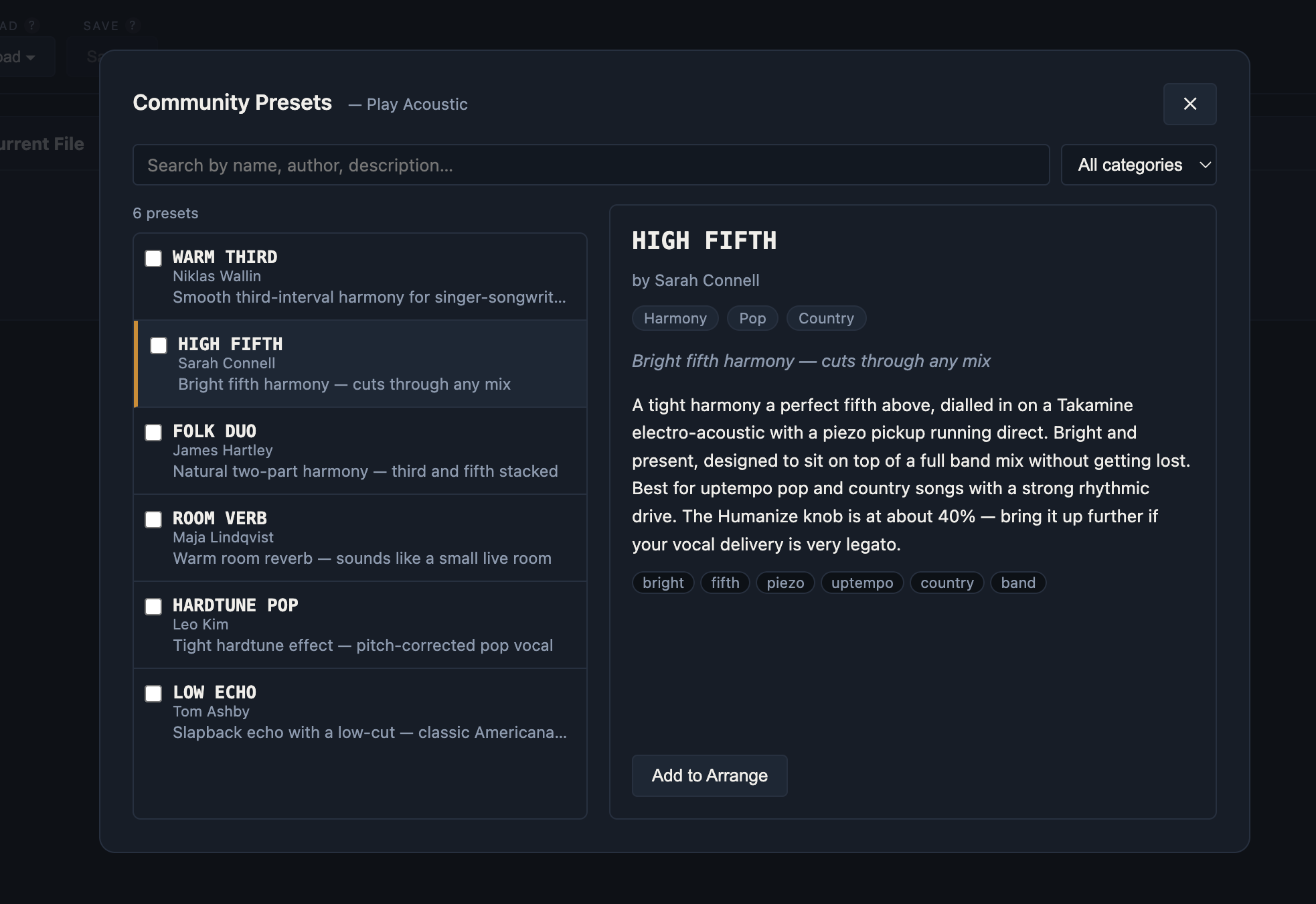
The Acoustic Play Editor now has a community preset library where you can share your own custom presets with other TC Helicon Play Acoustic and Play Electric users, and browse and import what others have created. This post explains how sharing works, what makes a good submission, and the rules that keep the library useful for everyone.
How to Share a Preset
- Open the editor and load your preset file — from disk or from the device.
- Navigate to the preset you want to share in the Presets tab.
- Click Share next to the preset name.
- Fill in the form: preset name, your name, a short description and a full description, categories, keywords, and an optional author code.
- Click Share. The preset is committed to the community library immediately.
Once submitted, the preset appears in the library and is available for others to import into their own files via the Arrange tab → Community.
What to Put in the Description
A good description is what turns a preset someone ignores into one they actually try. The short description (shown in the search list) should give the listener a one-line picture of what they'll hear. The full description is where you fill in the context.
Think about the following when writing yours:
- Guitar type. Does it work best on a steel-string acoustic, a nylon-string classical, a 12-string, or an electro-acoustic with a piezo pickup? A preset tuned for a bright, cutting Taylor will sound different on a warm mahogany guitar.
- Microphone or pickup. Did you dial it in using a condenser on a mic stand in a room, or direct into the device from an XLR mic? The input character matters — especially for harmony and hardtune presets.
- Voice type. Tenor, baritone, soprano? High or low key? Some harmony settings work beautifully in one range and fall apart in another.
- Genre or style. Is this a thick folk harmony, a bright country third, a drenched post-rock reverb, a tight hip-hop doubler? A genre hint saves a lot of audition time.
- Specific song or context. If you built this preset for a particular song, say so. "Dialled in to match the studio verb on X's chorus" tells the next person exactly what to expect and whether it's relevant to their set.
- Tips and tweaks. Should the Humanize knob be turned up? Does this work better at high input gain? Any context that helps someone get the best out of the preset without starting from scratch.
About Your Name and Author Code
When you share a preset you provide your name and, optionally, an author code. These serve a practical purpose — not an ownership claim.
Your name is displayed next to the preset in the library so users know who made it. It doesn't have to be your full legal name — a first name, a stage name, or a username is fine. It just needs to be consistent so people can find your other presets.
The author code is a private phrase only you know. The editor stores only a hash of it — never the code itself. If you need to fix a mistake in your description, update the preset data, or remove a submission, you enter your code to verify it's you. Without the code, the library has no way to tell you apart from someone else trying to edit your work.
The author code is not a copyright assertion or ownership certificate. The community library is maintained by the editor team, and we reserve the right to modify or remove any submission at any time — for quality, relevance, or any other reason. Do not treat the library as personal storage or a backup service.
Rules for Submitting
Keep these in mind before hitting Share:
- Don't submit factory presets. The TC Helicon Play Acoustic and Play Electric already ship with hundreds of presets, and the editor's preset packs include them. The community library is for original work — presets you've built yourself. Submitting a lightly-renamed factory preset wastes everyone's time.
- Test it properly first. Play through it with a real guitar and real vocals. Check that harmony intervals are correct, that reverb tails don't clip, that levels are sensible. A preset that sounds like feedback at normal gain is not ready to share.
- Use a meaningful name. The device limits preset names to fifteen characters. Make them count — "WARM COUNTRY 3" tells people more than "MY PRESET 01". Numbers are fine if they distinguish variations.
- Write a real description. One word is not a description. "Nice reverb" is not a description. If you wouldn't find it useful when searching for a preset, don't submit it.
- One preset, one entry. If you improve a preset you've already shared, use the Replace preset option rather than submitting a duplicate.
- Keep it appropriate. The library is a public, shared resource. Submissions that are offensive, misleading, or spam will be removed.
Browsing and Importing
To browse community presets, open the Arrange tab and click Community next to the Load Presets button. You can search by name, author, or any word in the description, and filter by category. Click a preset to read the full description, then click Add to Arrange to load it into the right-hand source panel — from there you drag it into the slot you want in your file.
You can also select multiple presets with the checkboxes and click Add X presets to Arrange to load a batch at once.
A Note on Moderation
The library is not automated or self-governing. Submissions go directly into the index and are visible immediately, but the editor team reviews them and will remove entries that don't meet the guidelines above. If you notice a preset that shouldn't be there, use the library issue tracker to flag it.